Daily standup bot
Standup is a crucial part of running an effective engineering team, and also oh so tedious: every morning, everyone digs back through what they did and writes it up. It's worse for teams spread across timezones, where there's no shared standup to anchor the day, so it's easy to just forget.
But the work you did is there: the PRs in GitHub, the docs in
Notion, the decisions in
Slack threads. If it's all recorded somewhere, an agent should be able to at least draft it. Composio sessions make this incredibly easy for agents: a session hands the agent everything it needs, search to find the right tool, parallel execute to run many at once, a sandbox and volumes. It uses Composio to extract, parse, and cross-reference data across all those sources and write clean summaries of the real work your team shipped. All you have to do is create a session for your teammate and let it cook.
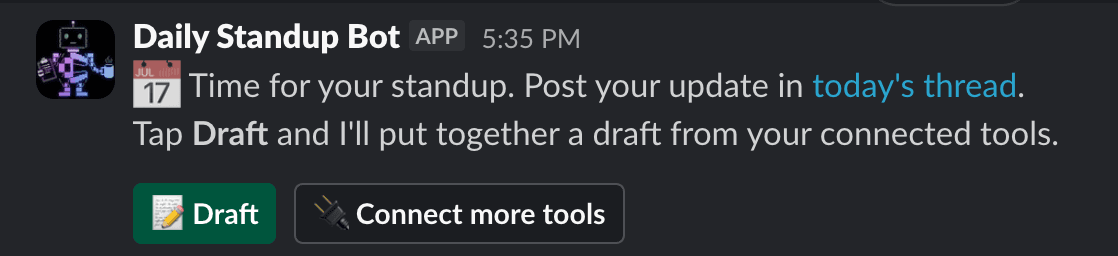
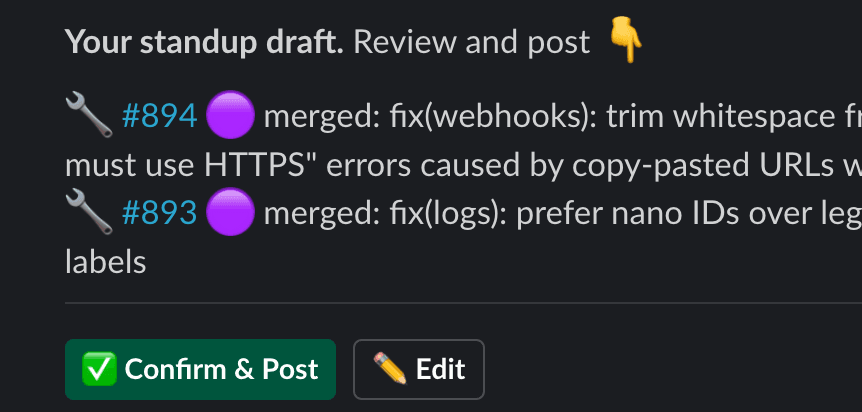
So we built a Slack bot that does exactly that. Once a day, at a set time in each teammate's own timezone, it reminds them to post in the daily standup thread in a central channel. With one button click, they can run a subagent that uses their Composio connections to generate a clean, consolidated draft to review and post. We'll build it step by step.
Is this the right example for you?
This is a deliberately advanced, opinionated build. It's a strong reference for five things:
- Background-agent sessions: the draft agent runs on a schedule, not in a conversation. It works from the tools a member already connected and never pauses to ask for auth.
- Manual execution for deterministic workflows: outside the draft, the bot doesn't let an agent decide. It runs a fixed flow, calling tools directly with manual execution, so a button always triggers the same exact steps.
- Manual, pre-connected auth: members connect their tools ahead of time using manual connections, and the agent just uses whatever is there.
- White-labelling (advanced): your own Slack app and bot identity, via white-labelling. This is not the easy path. We'd recommend Composio's managed apps, which require no additional configuration. Only do this if you specifically want your own branding.
- The proxy (advanced): using
proxyExecuteto call Slack API endpoints Composio doesn't wrap as tools.
It is not an example of in-chat or dynamic auth (asking a user to connect a tool mid-run), and it's more setup than many bots need. If you'd rather have a Slack bot with zero setup (Composio's managed app) or in-chat auth, start with the general Slack bot instead.
The Slack bot itself follows a deterministic flow: the same menu every day. When a member taps a button, it launches a subagent with a Composio session to produce the draft. Here's the shape of it:
Setup
You need a Composio API key, a Slack workspace you can install an app into, and Node with tsx. The finished bot deploys to Vercel as two serverless functions, a cron and an interactivity handler, so there's no long-running server.
npm install @composio/core @composio/vercel ai dayjsMake your custom Slack bot
This bot doesn't post as "Composio". It posts as my app, with its own name, icon, and (frankly ridiculous) face:

That's white-labelling: you bring your own Slack app's credentials instead of using Composio-managed ones. Composio-managed auth needs no setup at all; white-labelling is the trade-off, you register and configure your own Slack app first. It's more work, but the bot is fully yours.
Slack's app-creation UI changes from time to time, so the exact screens below may differ. First, the Slack app itself.
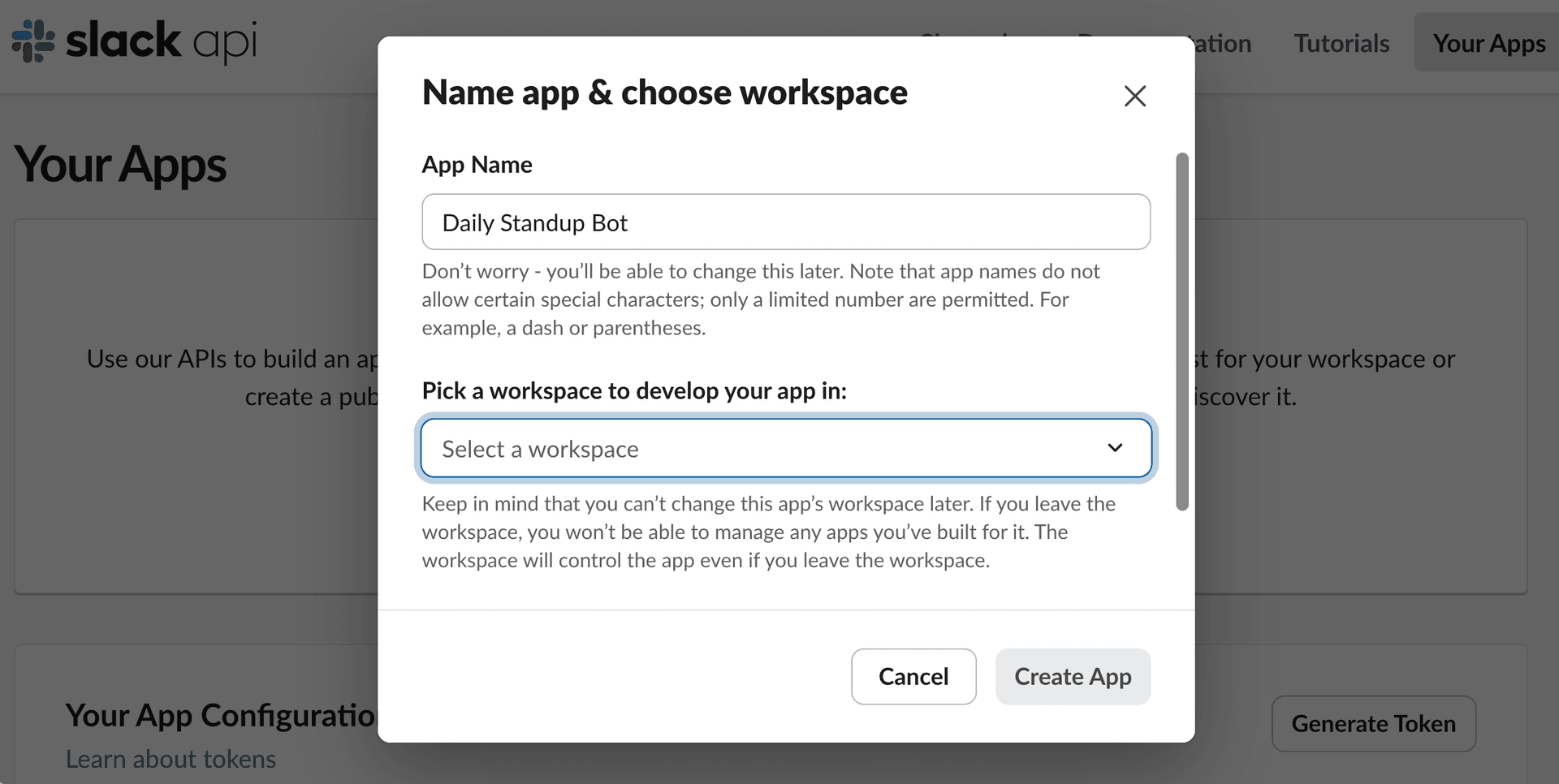
Create the app from scratch. At api.slack.com/apps, click Create an App, choose From scratch, name it (mine is Daily Standup Bot), and pick your workspace.
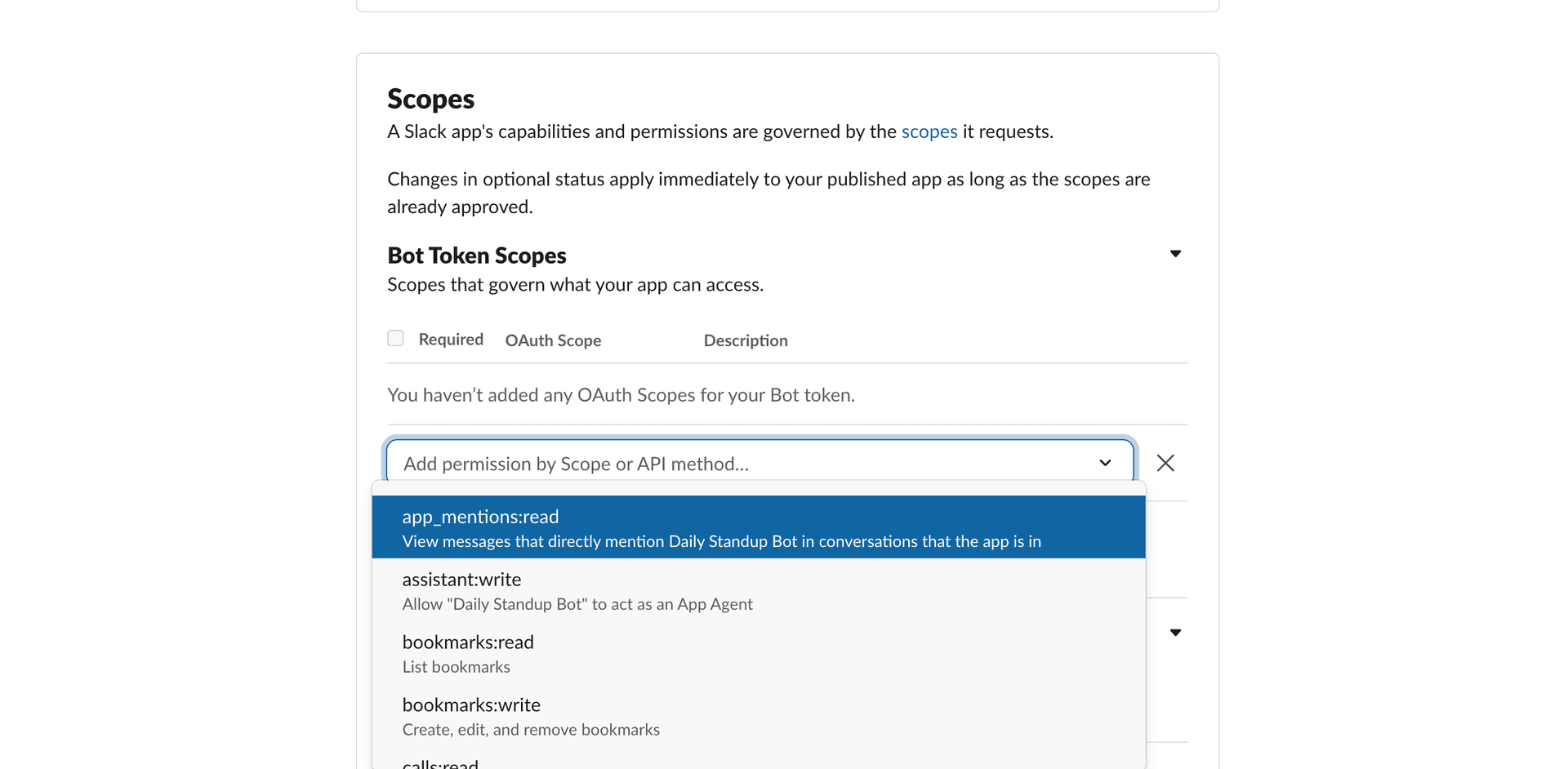
Add the Bot Token Scopes. Under OAuth & Permissions, add: chat:write, im:write, channels:history, channels:read, users:read, users:read.email, team:read. Then turn on Interactivity and point its Request URL at your deployment's /api/interactivity.
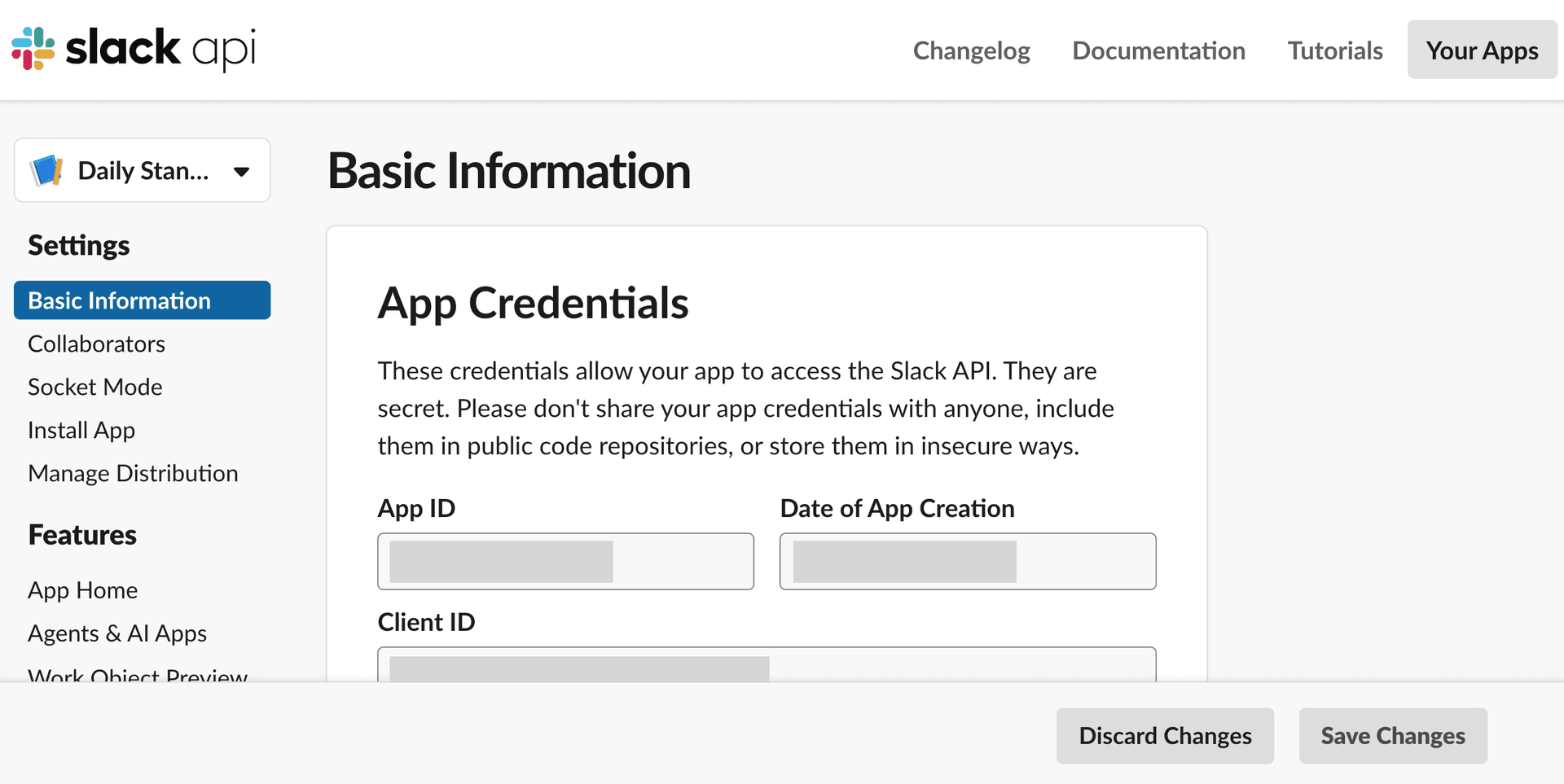
Grab the app credentials. On Basic Information, copy the Client ID and Client Secret. Composio drives the OAuth as your app with these.
Auth the bot
The Slack app exists; now connect it through Composio so your code can act as it. You create one slackbot auth config from your credentials, then a setup script does the OAuth once with Composio's manual authentication flow.
`slackbot` vs `slack`
Composio has two Slack toolkits, and this bot uses both:
slackbotauthenticates a Slack app and acts as the bot (a bot token). It posts the reminders and drafts as "Daily Standup Bot," and it's the one you white-label here.slackauthenticates an individual user and acts as them (a user token). Each teammate connects this so the bot can post their standup under their own name and read their activity for context.
Rule of thumb: posting as the bot uses slackbot; doing something as a person uses slack.
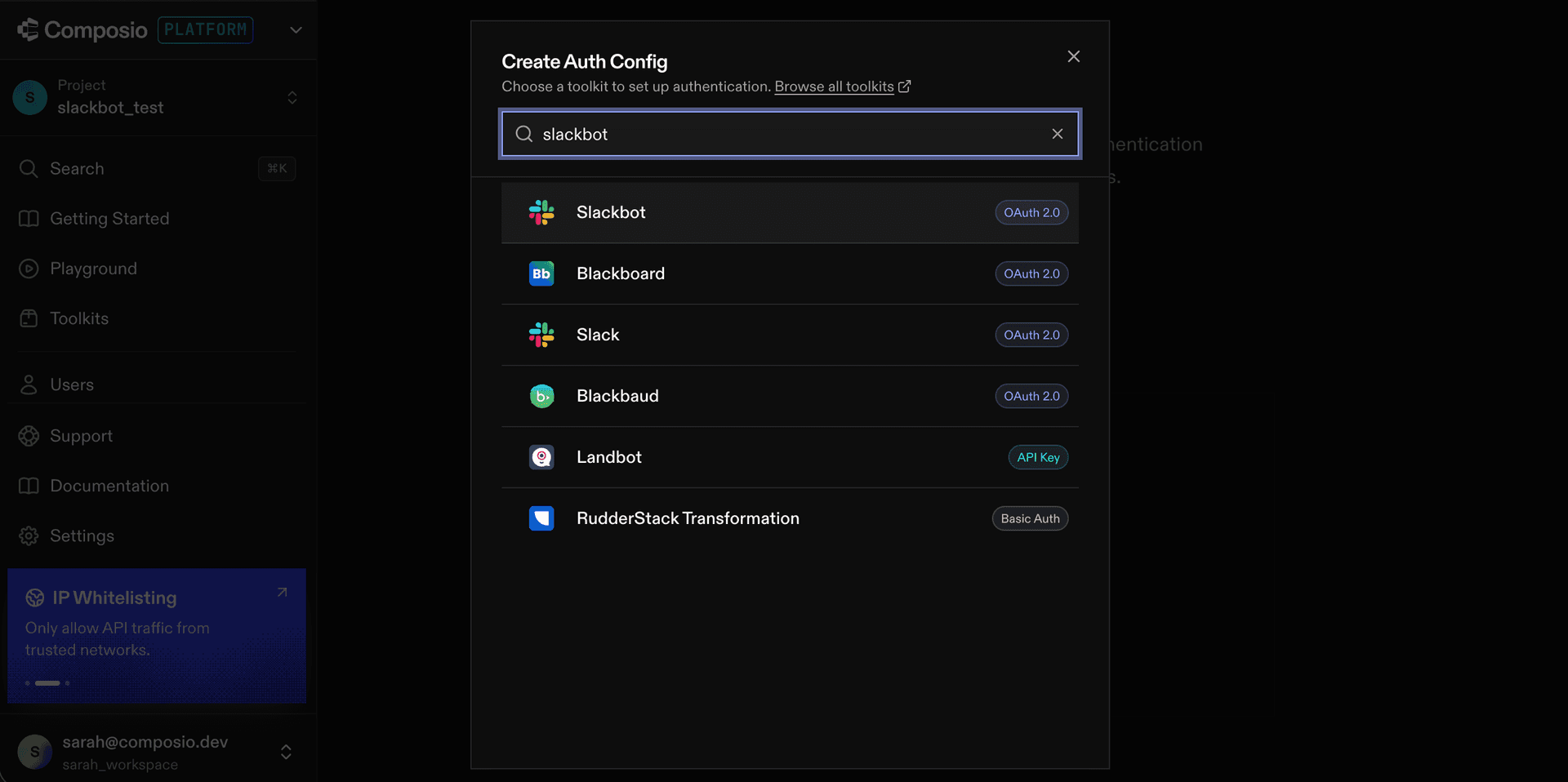
Create an auth config and pick the Slackbot toolkit. In the Composio dashboard, click Create Auth Config and search slackbot. Choose Slackbot, not Slack: Slackbot posts as the bot identity, while Slack acts as an individual user.
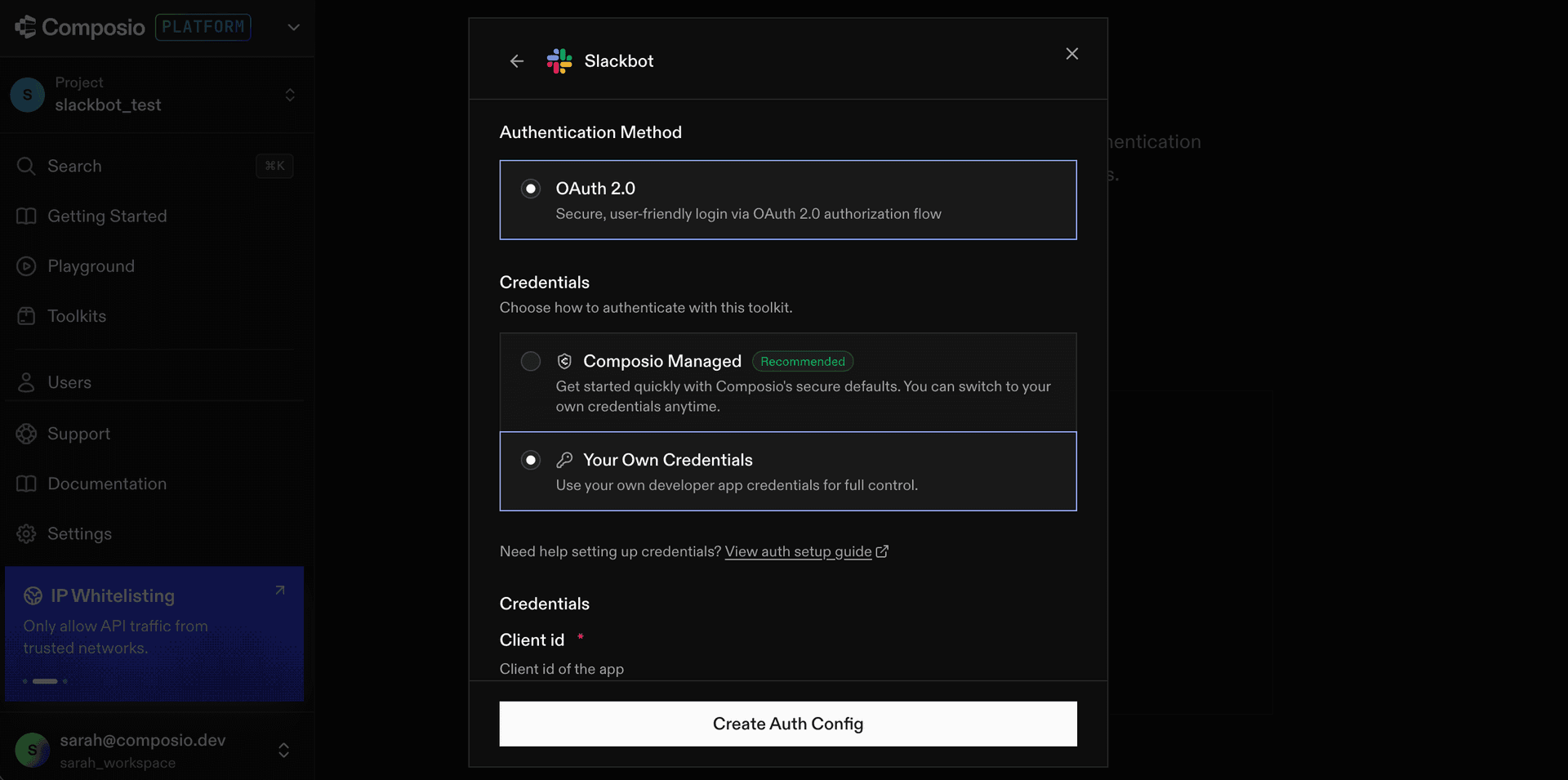
Use your own credentials. Pick OAuth 2.0, then Your Own Credentials, and paste the Client ID and Secret from before. Add team:read to the user token scopes. This is the white-label step: your app, your name, your face.
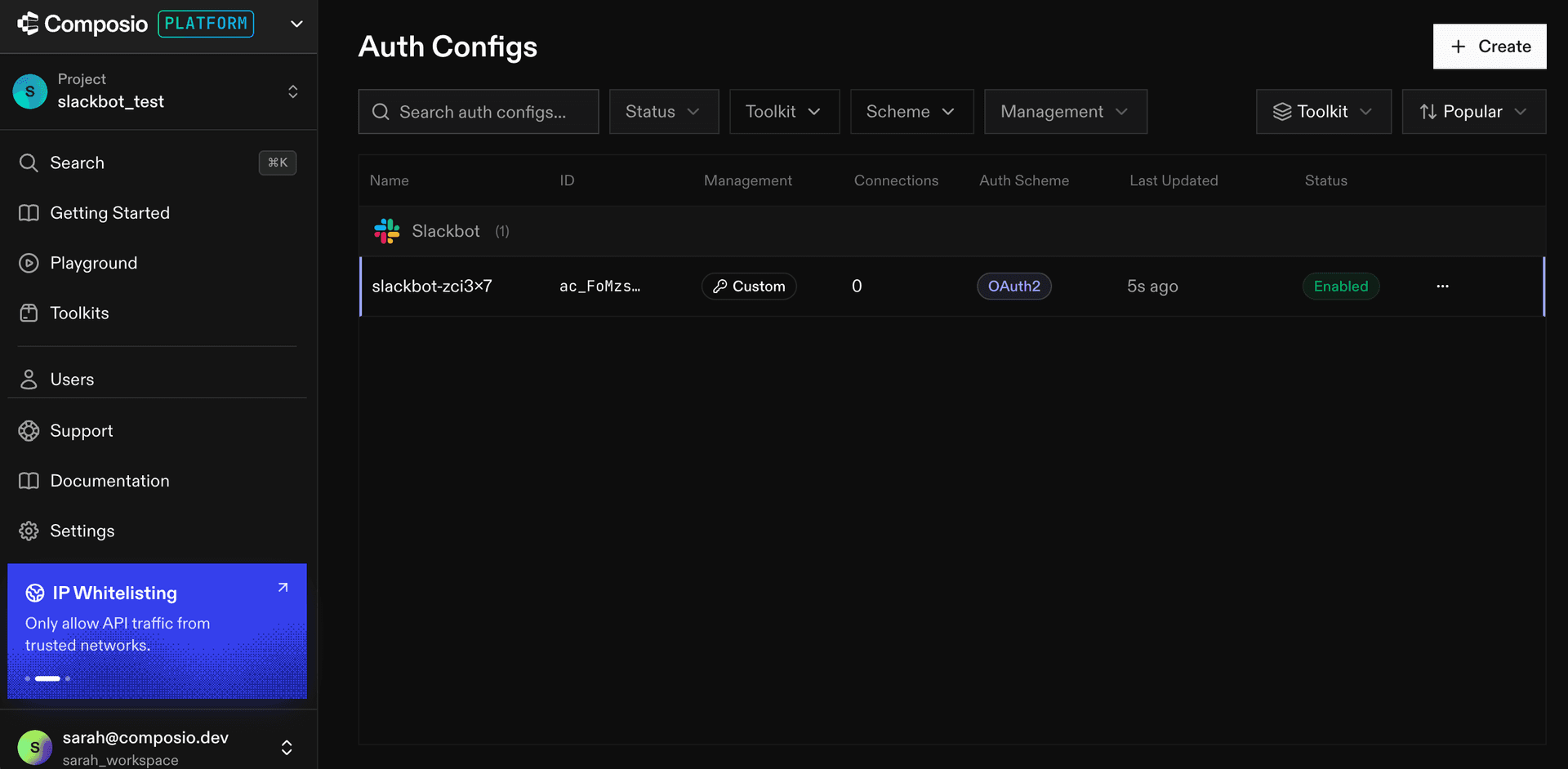
Save the auth config id. Once created, copy its ac_... id into COMPOSIO_SLACKBOT_AUTH_CONFIG_ID. This is the one auth config your app uses to take actions on behalf of your bot.
Run the setup script to connect the bot. For this bot, we first need to connect the bot itself to Composio, which only needs to be done once. The script creates an OAuth link for you to connect your Slack bot to Composio, which lets you use Composio to send messages on behalf of your bot.
The bot authenticates as your own Slack app. Create a session against the slackbot auth config and check whether it's already connected.
1234567891011121314151617181920import { Composio } from '@composio/core';
const composio = new Composio({ apiKey: process.env.COMPOSIO_API_KEY });const AUTH_CONFIG = process.env.COMPOSIO_SLACKBOT_AUTH_CONFIG_ID!;
// Connect the bot's own Slack app once, so it can post and DM as the bot.async function main() {  const session = await composio.create('default', {    authConfigs: { slackbot: AUTH_CONFIG },  });
  const toolkits = await session.toolkits({ toolkits: ['slackbot'] });  const active = toolkits.items.find((t) => t.slug === 'slackbot')?.connection?.isActive;  if (active) {    console.log('Bot already connected.');    return;  }}
main();If not connected, `session.authorize()` returns a Connect Link. Print it, then `waitForConnection()` resolves once the bot finishes OAuth. That connected account is the identity the bot posts as.
13 unmodified lines141516171819202122232425262713 unmodified lines  if (active) {    console.log('Bot already connected.');    return;  }
  // Not connected: print the Connect Link, then wait for the user to finish.  const connectionRequest = await session.authorize('slackbot');  console.log('Authorize the bot:', connectionRequest.redirectUrl);
  const account = await connectionRequest.waitForConnection();  console.log('Bot connected:', account.id);}
main();
The first run prints a link and waits:
╭─────────────────────────────────────────────────────────╮
│  Daily Standup Bot: One-Time Setup                       │
╰─────────────────────────────────────────────────────────╯
  ✅ Auth config has the required user scopes.
  ·  Bot is not connected yet. Generating an authorization link…

  Open this URL in your browser to authorize the bot:

    https://backend.composio.dev/s/AbC123xy

  Waiting for you to complete the OAuth flow (Ctrl+C to abort)…
  ✅ Bot connected to Slack.

──────────────────────────────────────────────────────────────────────
  🎉 Setup complete. Invite the bot to your standup channel and
     point your Slack app's Interactivity Request URL at
     https://<your-deployment>/api/interactivity
──────────────────────────────────────────────────────────────────────
Open that link to approve the bot, and the connection goes live:
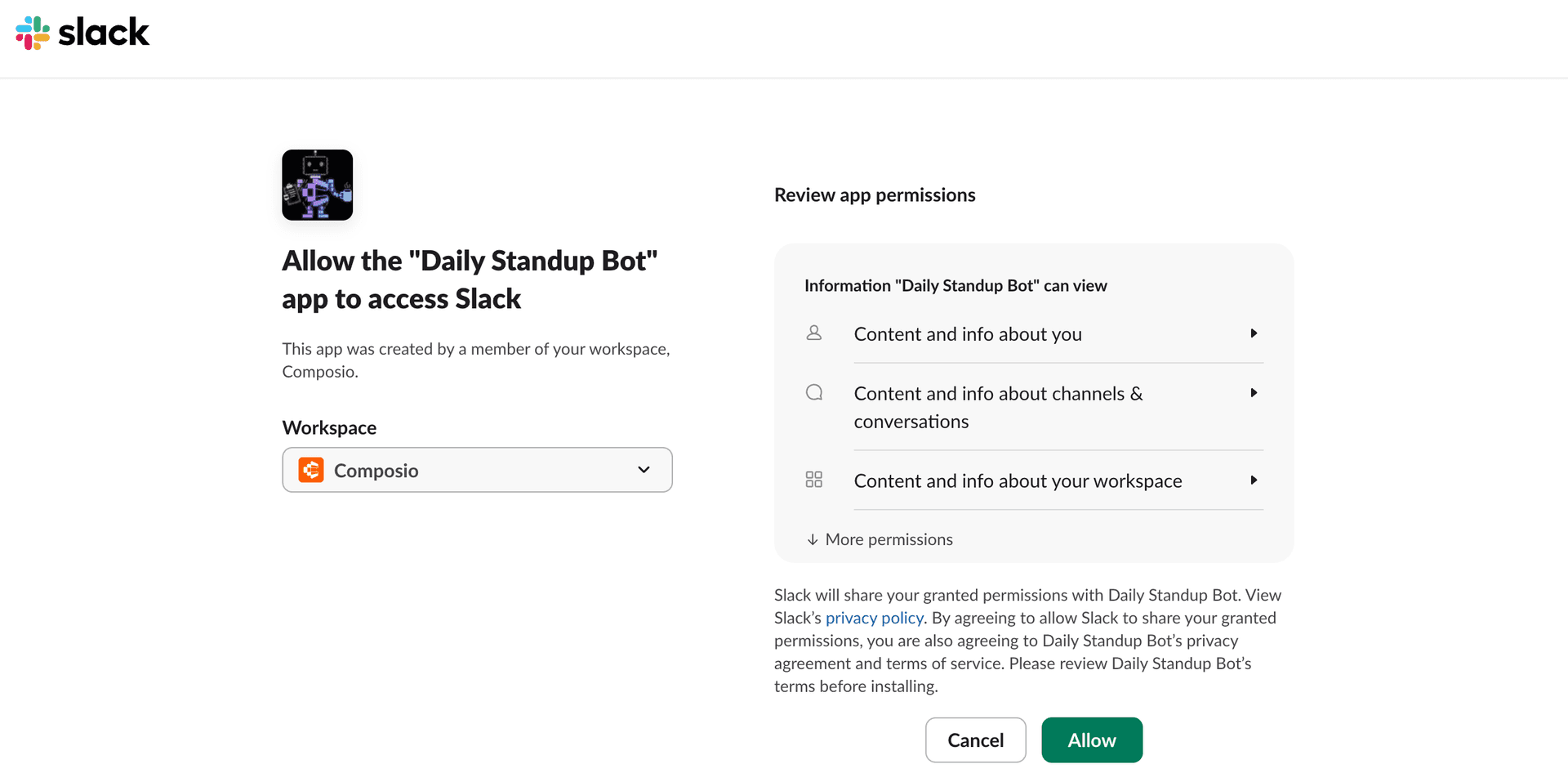
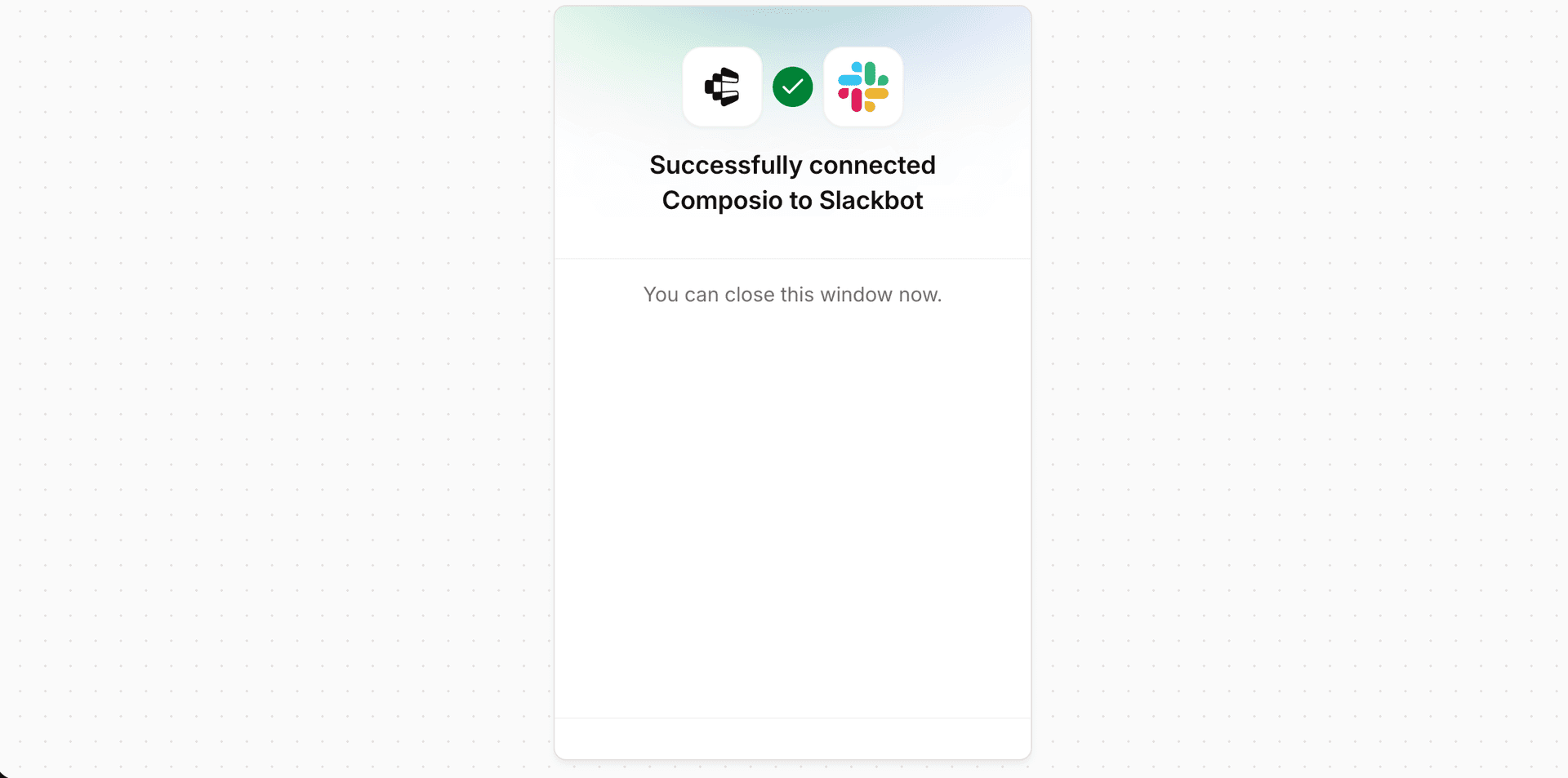
The script is idempotent and repeatable. Forgot a scope, or hit an issue? No stress, just re-run it with --reconnect.
Talk to Slack
To send and update messages in our deterministic bot workflow, we use Composio's SLACKBOT_SEND_MESSAGE and SLACKBOT_UPDATES_A_MESSAGE tools via manual tool execution. SLACKBOT_SEND_MESSAGE takes Block Kit blocks, so a message with interactive buttons can go through a tool too.
123456789101112131415161718192021import { composio } from './composio';
const BOT_USER = 'default';
// Sending a message is a named tool, even when it carries interactive buttons:// SLACKBOT_SEND_MESSAGE takes markdown_text for prose, or Block Kit `blocks`.export async function postMessage(channel: string, text: string, blocks?: unknown[]) {  const res = await composio.tools.execute('SLACKBOT_SEND_MESSAGE', {    userId: BOT_USER,    arguments: blocks ? { channel, blocks } : { channel, markdown_text: text },  });  return res.data as { ts?: string };}
// Updating the draft after an edit is a tool too: SLACKBOT_UPDATES_A_MESSAGE.export async function updateMessage(channel: string, ts: string, blocks: unknown[]) {  await composio.tools.execute('SLACKBOT_UPDATES_A_MESSAGE', {    userId: BOT_USER,    arguments: { channel, ts, blocks },  });}
When a Slack action has no tool, like opening a modal (views.open), it drops to proxyExecute: the escape hatch for anything the named tools don't cover, hitting any Slack Web API endpoint as a connected account with no token in your code.
17 unmodified lines18192021222324252627282930313233343536373817 unmodified lines    userId: BOT_USER,    arguments: { channel, ts, blocks },  });}
// Opening a modal (views.open) has no Composio tool, so it drops to the proxy.// proxyExecute hits the raw endpoint as the bot's connected account, the escape// hatch for anything the named tools don't cover.export async function openModal(triggerId: string, view: unknown) {  const { items } = await composio.connectedAccounts.list({    userIds: [BOT_USER],    toolkitSlugs: ['slackbot'],    statuses: ['ACTIVE'],  });  await composio.tools.proxyExecute({    endpoint: '/views.open',    method: 'POST',    body: { trigger_id: triggerId, view },    connectedAccountId: items[0]?.id,  });}
Make the buttons work
Our StandUp bot gives the user two options every morning: Draft or Connect more tools. Each message uses Block Kit to create those buttons. For each button we define an action_id that lets us recognise which button was clicked.
// the reminder's Draft button
const draftButton = {
  type: 'button',
  style: 'primary',
  text: { type: 'plain_text', text: '📝 Draft' },
  action_id: 'draft',
  value: JSON.stringify({ memberEmail, dmChannel, dmTs }),
};When it's clicked, Slack POSTs to your /api/interactivity handler. Verify the request, ack within Slack's 3-second window, then route on the action_id:
Slack POSTs to this endpoint on every click. Verify the signature, then respond within 3 seconds so Slack doesn't retry, and handle the click after.
123456789101112import { verifySlackSignature, readRawBody } from './_utils/slack';
// Slack POSTs here every time someone clicks a button. Verify it really came// from Slack, then ack within 3 seconds (Slack retries if you're slow).export default async function handler(req: Request, res: Response) {  const body = await readRawBody(req);  if (!verifySlackSignature(body, req.headers)) return res.status(401).end();
const payload = JSON.parse(new URLSearchParams(body).get('payload') ?? '{}'); res.status(200).end(); // ack immediately await handleClick(payload); // then do the slow work}The button carried its context in `value`. Switch on the `action_id` and call the right function. Draft launches the subagent; the rest post through the proxy. The flow is deterministic, no model in the loop.
112345673 unmodified lines1112131415161718192021222324252627282930import { verifySlackSignature, readRawBody } from './_utils/slack';import { verifySlackSignature, readRawBody, updateMessage, postAsMember } from './_utils/slack';import { generateDraft } from './_utils/agent';import { draftMessage, connectMenu } from './_utils/blocks';
// Slack POSTs here every time someone clicks a button. Verify it really came// from Slack, then ack within 3 seconds (Slack retries if you're slow).export default async function handler(req: Request, res: Response) {3 unmodified lines  const payload = JSON.parse(new URLSearchParams(body).get('payload') ?? '{}');  res.status(200).end();        // ack immediately  await handleClick(payload);   // then do the slow work}
// Each button carried its context in `value`, so the handler knows exactly what// to do. No model decides anything here: the flow is fixed.async function handleClick(payload: any) {  const action = payload.actions?.[0];  const ctx = JSON.parse(action?.value ?? '{}');
  if (action?.action_id === 'draft') {    const draft = await generateDraft(ctx.memberEmail);   // launch the subagent    await updateMessage(ctx.dmChannel, ctx.dmTs, draftMessage(draft, ctx));  } else if (action?.action_id === 'connect') {    await updateMessage(ctx.dmChannel, ctx.dmTs, connectMenu(ctx));  } else if (action?.action_id === 'confirm') {    await postAsMember(ctx.memberEmail, ctx.channel, ctx.draft, ctx.threadTs);  }}
Connect more tools generates a per-member OAuth link for each toolkit the member hasn't connected, so they can add a source without leaving Slack:

Edit opens a modal (views.open through the proxy), and Confirm posts the draft into the day's thread as the member.
Draft the standup
Now this is the cool and magical part, and the easy part: all the background agent needs is a tool-router session and a prompt. When a member taps Draft, you spin up a session scoped to the toolkit catalogue and let the agent research and write.
A session writes the draft
A tool-router session gives the agent its tools. Pass the member's email and your full list of toolkits, hand the tools to the model, and let it investigate and write. You don't have to check which ones the member set up: the session only exposes tools for the accounts they've actually connected, and ignores the rest.
1234567891011121314151617181920212223242526272829import { Composio } from '@composio/core';import { VercelProvider } from '@composio/vercel';import { generateText, stepCountIs } from 'ai';
const composio = new Composio({  apiKey: process.env.COMPOSIO_API_KEY,  provider: new VercelProvider(),});
// The toolkits the bot can draft from. A member only has some of these connected,// and that's fine: the session just uses whatever they've actually authorized.const TOOLKITS = ['github', 'linear', 'notion', 'googlecalendar', 'slack'];
// Spin up a tool-router session for one member and let the agent research and// write their standup. session.tools() returns Composio's research meta-tools// (search / execute / workbench), scoped to those toolkits.export async function generateDraft(memberEmail: string) {  const session = await composio.create(memberEmail, { toolkits: TOOLKITS });  const tools = await session.tools();
  const { text } = await generateText({    model: 'anthropic/claude-sonnet-4-5',    system: "Write a concise daily standup from the member's recent activity.",    prompt: 'Research and write the standup update.',    tools,    stopWhen: stepCountIs(40),  });  return text.trim();}
Use what's connected, nothing more
The router can also manage connections, asking the user to authorize any toolkits they haven't connected yet. During a draft you don't want that: if the agent reaches for a tool the member hasn't connected, it should skip it, not prompt them to log in. manageConnections: false removes those meta-tools, so the agent drafts from exactly what's already connected.
13 unmodified lines1415161718181920212223242526272813 unmodified lines// Spin up a tool-router session for one member and let the agent research and// write their standup. session.tools() returns Composio's research meta-tools// (search / execute / workbench), scoped to those toolkits.export async function generateDraft(memberEmail: string) {  const session = await composio.create(memberEmail, { toolkits: TOOLKITS });  // manageConnections:false strips the connection meta-tools. The agent drafts  // from whatever the member already connected and never starts an OAuth flow  // mid-draft: if a tool needs auth, it's simply not in the session.  const session = await composio.create(memberEmail, {    toolkits: TOOLKITS,    manageConnections: false,  });  const tools = await session.tools();
  const { text } = await generateText({    model: 'anthropic/claude-sonnet-4-5',
The bot posts the result back as a draft the member can confirm or edit:
The whole project
123456789101112131415161718192021222324252627282930313233343536373839404142434445464748495051525354555657585960616263646566676869707172737475767778798081828384858687888990919293949596979899100101102103104105106107108109110// ─────────────────────────────────────────────────────────────────────────────// Standup bot setup. Edit this file to configure your team and tools.// Secrets (API keys, IDs) live in .env.local, never here.// ─────────────────────────────────────────────────────────────────────────────
export type Member = {  slackEmail: string; // used to look up their Slack user + Composio connections  githubUsername: string;  standupTime?: string; // "HH:MM" 24h in THEIR timezone; defaults below  standupTimezone?: string; // IANA tz, e.g. "Europe/Rome"; defaults below};
export type Toolkit = {  slug: string; // Composio toolkit slug  label: string; // shown on Connect buttons  emoji: string; // leads the bullet in the draft  draftInstruction: string; // injected into the draft prompt when connected};
// Model used to write the draft, via the Vercel AI Gateway.export const MODEL = "anthropic/claude-sonnet-4-5" as const;
// ─── Schedule ────────────────────────────────────────────────────────────────// The cron runs every 30 min on weekdays; each member is reminded in the slot// containing their standupTime, evaluated in their own timezone.export const DEFAULT_STANDUP_TIMEZONE = "America/Los_Angeles";export const DEFAULT_STANDUP_TIME = "10:00";export const CRON_SLOT_MINUTES = 30;// When true, every member is "due" on every cron run, ignoring standupTime.// Set false in production so per-person times are honored.export const DEMO_MODE = false;
// ─── Team ────────────────────────────────────────────────────────────────────export const standupChannel = "#standup";
export const team: Member[] = [  { slackEmail: "you@example.com", githubUsername: "your-handle" },  { slackEmail: "teammate@example.com", githubUsername: "teammate-handle" },  // A per-person time and timezone override the defaults below:  { slackEmail: "alberto@example.com", githubUsername: "alberto-handle", standupTimezone: "Europe/Rome" },];
// GitHub org that standup drafts are scoped to. Activity in other orgs and// personal repos is ignored. Change this to your org.export const GITHUB_ORG = "your-github-org";
// ─── Toolkit catalogue ───────────────────────────────────────────────────────// Every toolkit a member can connect. The draft agent gets a Composio tool-router// session scoped to whichever of these each member has connected. Delete what you// don't want; edit draftInstruction to change how each source is summarized.export const TOOLKITS: Toolkit[] = [  {    slug: "github",    label: "GitHub",    emoji: "🔧",    draftInstruction:      `GitHub: find PRs they opened or merged in the time range, SCOPED TO THE ${GITHUB_ORG} ORG ONLY. Always include \`org:${GITHUB_ORG}\` in the search query. Ignore other orgs and personal repos. For each meaningful PR write a one-liner explaining its PURPOSE, prefixed with a status emoji: 🟣 merged, 🟢 open, ⚪️ draft, 🔴 closed. Include the *#number*.`,  },  {    slug: "linear",    label: "Linear",    emoji: "📋",    draftInstruction:      "Linear: find issues they created, updated, or completed in the time range. Summarize the meaningful ones (📋), focusing on what moved forward.",  },  {    slug: "notion",    label: "Notion",    emoji: "📝",    draftInstruction:      "Notion: find pages/docs they created or edited in the time range. Summarize the doc work as a one-liner (📝) describing what the doc is for.",  },  {    slug: "googlecalendar",    label: "Google Calendar",    emoji: "📅",    draftInstruction:      "Google Calendar: find their meetings/events in the time range. Only mention notable ones that reflect real work (📅), not routine blocks.",  },  {    slug: "googlemeet",    label: "Google Meet",    emoji: "🎥",    draftInstruction:      "Google Meet (context only): optionally read meeting details/transcripts for context. Do not list meetings just for existing.",  },  {    slug: "zoom",    label: "Zoom",    emoji: "🎥",    draftInstruction:      "Zoom (context only): optionally read meeting info/recordings in the time range for extra context.",  },  {    slug: "granola_mcp",    label: "Granola",    emoji: "🎙️",    draftInstruction:      "Granola (context only): optionally read meeting transcripts in the time range for additional context.",  },  {    slug: "slack",    label: "Slack",    emoji: "💬",    draftInstruction:      "Slack (context only): optionally look at messages they sent in public channels for context. Do not quote verbatim.",  },];
export const TOOLKIT_SLUGS = TOOLKITS.map((t) => t.slug);
Run it
Edit standup.config.ts with your team (each member's Slack email and timezone, plus your channel and GitHub org), set your four environment variables, run npx tsx scripts/setup.ts once to connect your bot, then vercel deploy.
Configuring sessions
What a session can scope: toolkits, tools, connections, and connection management
White-labeling authentication
Ship a bot under your own app's name, icon, and credentials
Custom vs managed auth
Bring-your-own Slack app versus a Composio-managed connection
Triggers
Run agents in response to events: schedules, webhooks, and app activity